
How to Install n8n on a VPS with Docker Compose

You can run n8n on your own VPS with Docker Compose in a single evening: two containers (n8n itself and Caddy, a reverse proxy that issues the HTTPS certificate for you), three small files and one start command. Below you get the ready-made files, an explanation of every variable, a first webhook workflow, a backup routine and an update procedure. All output was captured on a test server running n8n 2.45.7.
What n8n is and why host it yourself
n8n is an automation builder. You draw a chain of blocks: a form submission arrives from your site, a row gets added to a spreadsheet, a message goes to a chat, an hour later something checks for a reply. Each block is called a node, and the whole chain is a workflow. There are hundreds of ready-made nodes for popular services, and anything with an HTTP API can be called directly.
n8n sells a paid cloud version, but on your own server you pay only for the VPS and you decide how many workflows to run. The second reason is data: the tokens and passwords for your services stay with you, not with a third party. The price is that updates, backups and security become your job. We cover all three below.
What to prepare
- A VPS with Docker. Installation is covered in a separate article. n8n is modest with memory: at idle it used 380 MB and Caddy 15 MB. Workflows that handle large files or hundreds of runs a minute need more, so start with 2 GB of RAM, for example the 2 vCore / 2 GB configuration from the UFO.Hosting VPS line. The n8n image is heavy (1.81 GB), so check your disk headroom too.
- A domain or subdomain, say
n8n.example.com. Create an A record for it (a DNS record that ties a name to an IPv4 address) pointing at your server’s IP. Your domain registrar or DNS provider has a form for this. The record has to work before you start: Caddy goes for a certificate right after launch, and if the domain does not point at the server yet, it gets refused. Check withgetent hosts n8n.example.com, which should print your IP. - Ports 80 and 443 open. Let’s Encrypt (a free certificate authority) uses them to verify your domain, and visitors need them anyway. If
ufwis enabled, open them withsudo ufw allow 80/tcpandsudo ufw allow 443/tcp. For ports published by Docker this is a formality, since Docker opens them itself, but the rules help if your setup ever changes.
For a quick trial without a domain, use an address like n8n.203-0-113-10.sslip.io, where 203-0-113-10 is your IP with dashes instead of dots: the sslip.io service resolves such names to the matching address. A certificate for it is usually issued, though the shared domain may hit certificate authority rate limits. For permanent use, get your own domain.
The three project files
Create a directory and step into it:
mkdir ~/n8n && cd ~/n8nThe .env file. It holds variables that Compose substitutes into compose.yaml, so the values that change live apart from the rest of the setup. We create it right away with a random encryption key:
cat > .env <<EOF
DOMAIN=n8n.example.com
GENERIC_TIMEZONE=Europe/Berlin
N8N_ENCRYPTION_KEY=$(openssl rand -hex 32)
EOF
chmod 600 .env
Replace n8n.example.com with your domain. Line by line:
DOMAIN: the address n8n will open at.GENERIC_TIMEZONE: the time zone for scheduled workflows. If you leave it unset, n8n counts time in New York, and “every day at 9:00” fires when you do not expect it. Zone names come from the tz database, for exampleEurope/BerlinorAsia/Almaty.N8N_ENCRYPTION_KEY: the key n8n uses to encrypt saved credentials for your services (passwords, tokens, API keys).openssl rand -hex 32generates a random 64-character string. Lose the key and the saved credentials become unreadable; you would have to enter them again. Keep a copy of.envoff the server, for example in a password manager.
chmod 600 leaves the file readable and writable only by its owner. You could skip the key: n8n would generate one on first start and store it in its own data. We set it up front so it is in your hands. Whichever key is used, n8n also writes it into its data directory; we checked that the values match, so a copy of the volume contains it as well.
The Caddyfile. This configures the reverse proxy: a program that accepts requests from the internet on ports 80 and 443 and hands them to the container. Caddy also handles issuing and renewing the certificate. Create the file (nano Caddyfile) and paste:
{$DOMAIN} {
	reverse_proxy n8n:5678
}
That is the whole file. Caddy reads the address {$DOMAIN} from an environment variable passed in by compose.yaml, and n8n:5678 is the name of the n8n service plus the port it listens on inside Docker.
The compose.yaml file (nano compose.yaml) describes both containers:
services:
  caddy:
    image: caddy:2
    restart: unless-stopped
    ports:
      - "80:80"
      - "443:443"
    environment:
      - DOMAIN
    volumes:
      - ./Caddyfile:/etc/caddy/Caddyfile:ro
      - caddy_data:/data
    depends_on:
      - n8n

  n8n:
    image: docker.n8n.io/n8nio/n8n:2.45.7
    restart: unless-stopped
    environment:
      - N8N_HOST=${DOMAIN}
      - N8N_PROTOCOL=https
      - N8N_WEBHOOK_URL=https://${DOMAIN}/
      - N8N_PROXY_HOPS=1
      - N8N_ENCRYPTION_KEY
      - GENERIC_TIMEZONE
      - TZ=${GENERIC_TIMEZONE}
    volumes:
      - n8n_data:/home/node/.n8n

volumes:
  caddy_data:
  n8n_data:
The parts that are not obvious:
- Only Caddy publishes ports 80 and 443. n8n’s port 5678 is not exposed, so the only way in is through the proxy. The Docker article explains why this matters: Docker bypasses
ufwrules. - A line like
- DOMAINwith no value takes it from.env. Lines with=carry their value right here. N8N_HOSTandN8N_PROTOCOLtell n8n what address it is opened at.TZsets the time zone of the system inside the container, which affects logs among other things.N8N_WEBHOOK_URLis the public address for webhooks. Without it, according to the n8n documentation, the webhook address is built from the protocol, host name and port 5678, so it shows an internal address instead of the one the outside world sees. Older guides call this variableWEBHOOK_URL.N8N_PROXY_HOPS=1says there is one proxy in front of n8n and its headers can be trusted, so n8n sees the visitor’s real address instead of Caddy’s.- n8n data lives in the
n8n_datavolume and Caddy’s certificates incaddy_data. Volumes survive container re-creation. Keeping the certificates matters: without them Caddy would request new ones on every re-creation, and Let’s Encrypt has issuance limits. - The image version is pinned (
2.45.7). With no tag you would pick up the latest release on every update, major ones included, without noticing. Watch for new versions in the n8n release notes.
Validate the file:
docker compose config --quiet && echo OK
OK
Start it
Bring up both containers in the background:
docker compose up -dThe n8n image weighs 1.81 GB, so the download takes a while. When the command finishes, check the state and the log:
docker compose ps
NAME          IMAGE                     COMMAND                  SERVICE   CREATED          STATUS         PORTS
n8n-caddy-1   caddy:2                   "caddy run --config …"   caddy     33 minutes ago   Up 4 minutes   0.0.0.0:80->80/tcp, [::]:80->80/tcp, 0.0.0.0:443->443/tcp, [::]:443->443/tcp, 443/udp, 2019/tcp
n8n-n8n-1     docker.n8n.io/n8nio/n8n   "tini -- /docker-ent…"   n8n       33 minutes ago   Up 4 minutes   5678/tcp

docker compose logs n8n
...
Version: 2.45.7
...
Editor is now accessible via:
https://n8n.example.com
A bare 5678/tcp with no arrow means the port is not published to the outside. In the first minutes the log also contains warnings about deprecated environment variables (N8N_RUNNERS_MODE, N8N_UNVERIFIED_PACKAGES_ENABLED and others). Those announce future changes to defaults; they are not errors.
Look for the certificate in Caddy’s log:
docker compose logs caddy | grep "certificate obtained"
... "msg":"certificate obtained successfully","identifier":"n8n.example.com","issuer":"acme-v02.api.letsencrypt.org-directory"}
Issuance took a few seconds for us. If you see lines with error about domain validation instead, the domain does not point at the server yet or ports 80 and 443 are closed. Fix that, then restart Caddy with docker compose restart caddy.
First login
Open the address in your browser. n8n shows the owner account form:
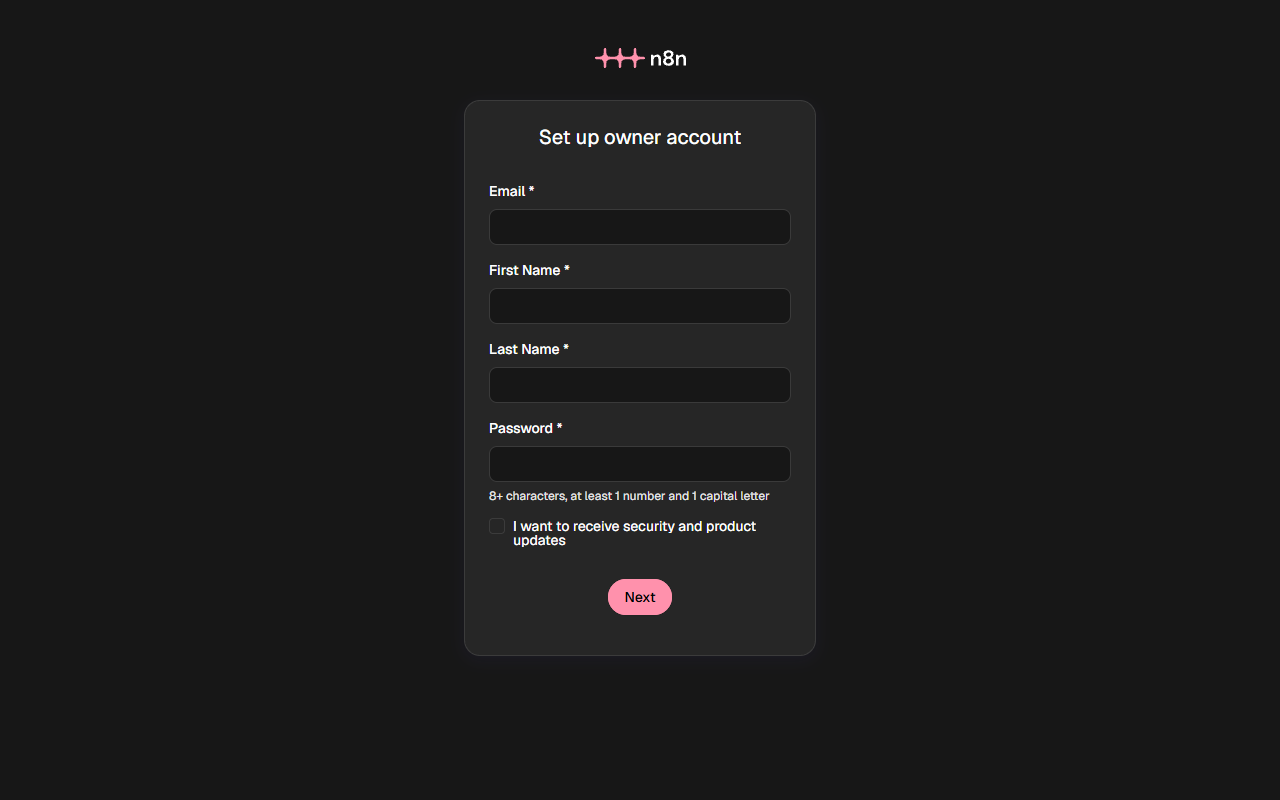
Fill it in immediately. Until an owner exists, the form is open to anyone who knows the address, and whoever submits it first gets full control of the service. Bots find new domains within minutes by watching public logs of issued certificates (more on that in the Nextcloud article). n8n requires at least 8 characters, a digit and a capital letter, but pick something longer.
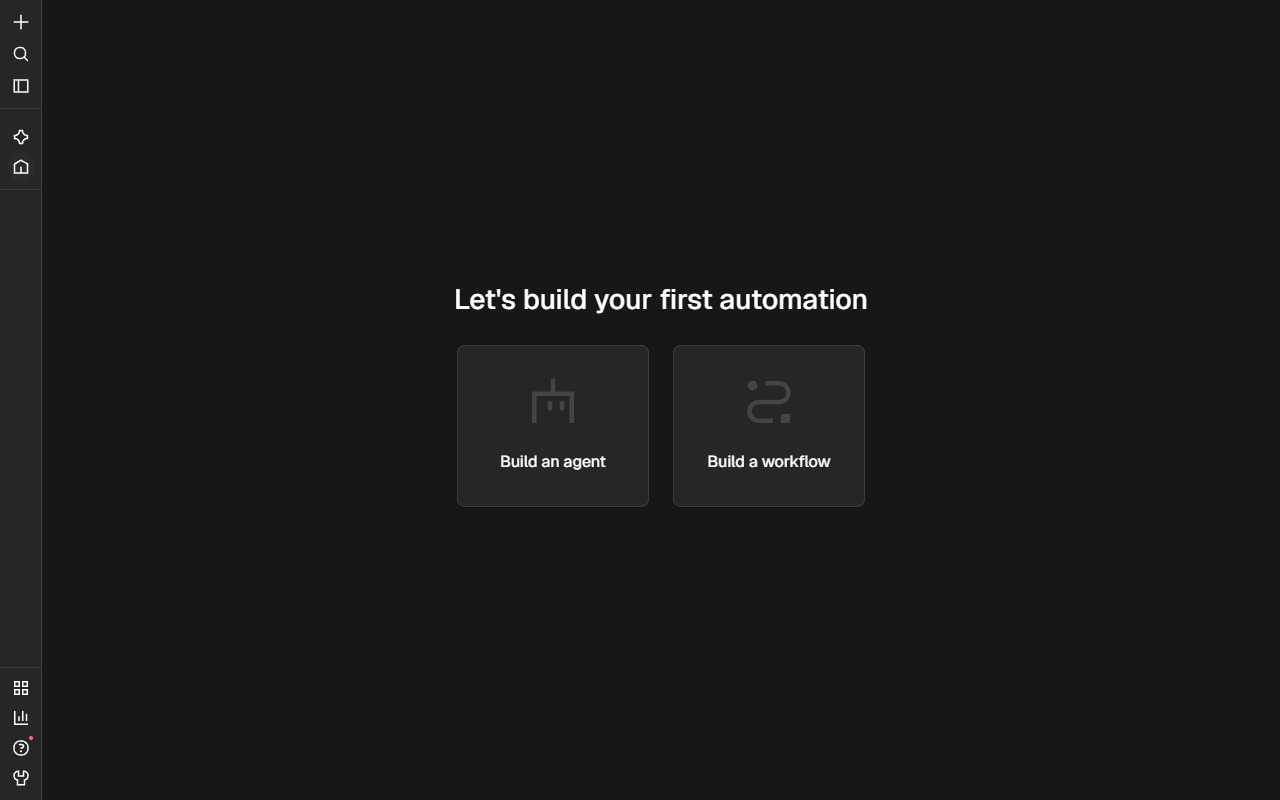
You can skip the questionnaire about your company, the prompt to connect a model for the built-in assistant, and the email offer of a free license for paid features. None of it is needed to work. After that the home screen opens:
First workflow: receiving a form submission by webhook
A webhook is an address that another program sends a request to in order to trigger your workflow, a form on your site for instance. We build the simplest possible workflow from two nodes: it accepts a request and replies with the data it received.
The easiest way is to paste a ready-made one. Click the “+” icon in the top left, choose “New workflow”, click the empty canvas and paste (Ctrl+V) this JSON:
{
  "nodes": [
    {
      "parameters": { "httpMethod": "POST", "path": "zayavka", "responseMode": "responseNode", "options": {} },
      "id": "a1b2c3d4-0001-4000-8000-000000000001",
      "name": "Webhook",
      "type": "n8n-nodes-base.webhook",
      "typeVersion": 2,
      "position": [0, 0],
      "webhookId": "a1b2c3d4-0001-4000-8000-0000000000aa"
    },
    {
      "parameters": { "respondWith": "json", "responseBody": "={{ { \"ok\": true, \"получено\": $json.body } }}", "options": {} },
      "id": "a1b2c3d4-0002-4000-8000-000000000002",
      "name": "Ответ",
      "type": "n8n-nodes-base.respondToWebhook",
      "typeVersion": 1.1,
      "position": [260, 0]
    }
  ],
  "connections": { "Webhook": { "main": [[{ "node": "Ответ", "type": "main", "index": 0 }]] } }
}
A window titled “Pasting this from an AI tool?” appears: click “Skip”. Then press Publish in the top right corner, and Publish once more in the dialog (the suggested version name is fine). The button turns into a Published status.
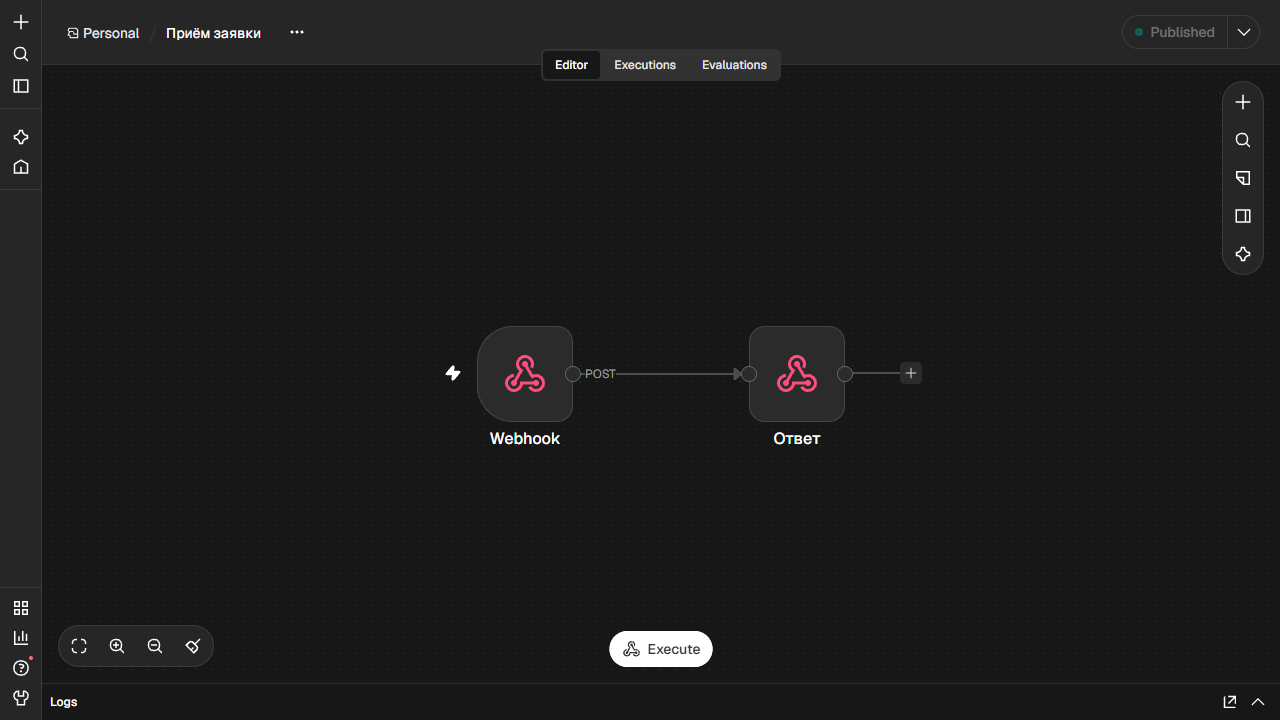
What is inside. The first node is Webhook: method POST, path zayavka (the last part of the address, use Latin letters), and the Respond field set to “Using ‘Respond to Webhook’ Node”. The second is Respond to Webhook: it answers in JSON and returns the data it was sent. To build the same thing by hand, add the nodes with “+” and set these values. Double-click the Webhook node to open it: it has two tabs with addresses.
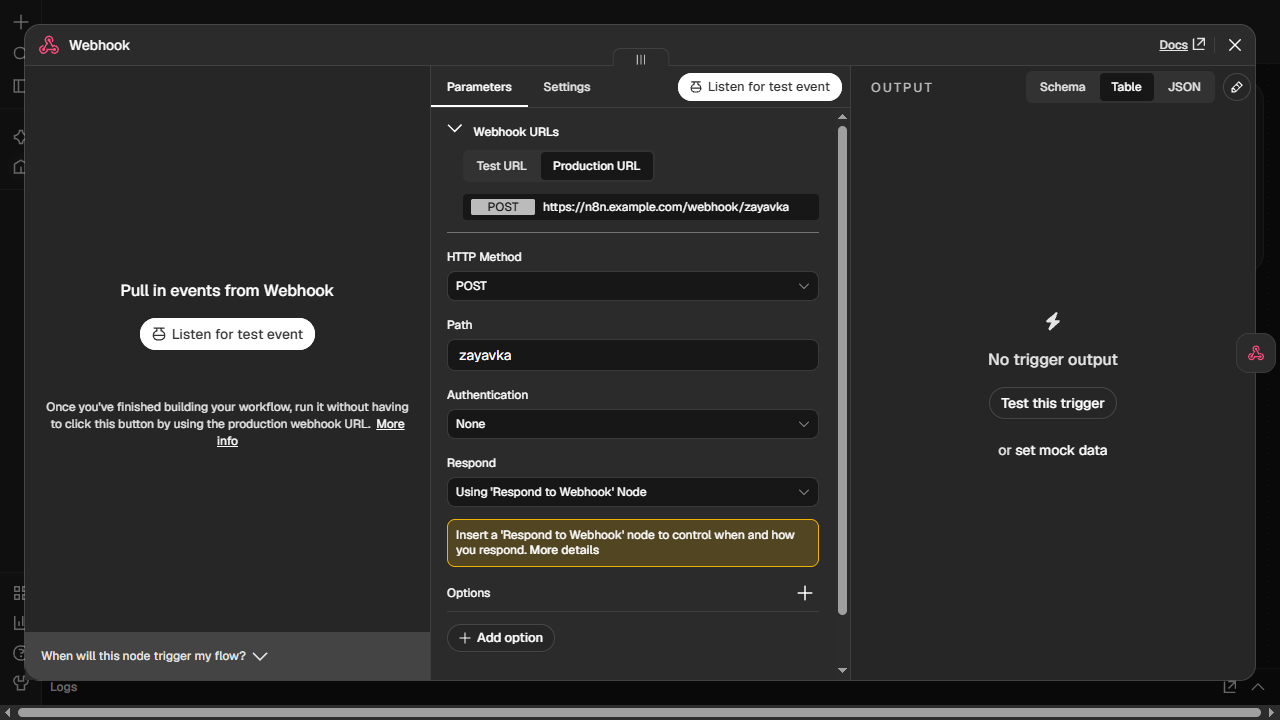
There are two addresses, and they are easy to mix up. The Test URL works after you click “Listen for test event” and accepts a single request; it is for debugging. The Production URL works while the workflow is published and accepts requests all the time. Send a request to the test address without clicking “Listen for test event” and n8n replies:
curl -X POST https://n8n.example.com/webhook-test/zayavka -d x=1
{"code":404,"message":"The requested webhook \"zayavka\" is not registered.","hint":"Click the 'Execute workflow' button on the canvas, then try again. ..."}
Now test the production address with a request from another computer:
curl -X POST https://n8n.example.com/webhook/zayavka \
  -H "Content-Type: application/json" \
  -d '{"имя":"Анна","телефон":"+000"}'
{"ok":true,"получено":{"имя":"Анна","телефон":"+000"}}
The Cyrillic in the workflow is test data, nothing more: zayavka is the Russian word for “application” transliterated into Latin letters, “Ответ” is the node name (“Reply”), получено is the key (“received”), имя and телефон are “name” and “phone”, and Анна is a first name. Use your own names and values; just keep the path in Latin letters and the same in both addresses. The workflow took the data and sent it back. Between the two nodes you can put anything: a spreadsheet row, an email, a chat message.
A webhook without a check is open to everyone who knows the address: in our workflow the Authentication field of the Webhook node is set to None. If the workflow creates or sends anything, choose Basic Auth or Header Auth there and set up the credentials.
Backup
The n8n_data volume holds the database with your workflows and the encryption key. Do not copy the database file while n8n is running: the copy can come out incomplete. So stop n8n for a minute, pack the volume and start it again:
mkdir -p ~/backups
docker compose stop n8n
docker run --rm -v n8n_n8n_data:/data:ro -v ~/backups:/backup alpine \
  tar czf /backup/n8n-data-$(date +%F).tgz -C /data .
docker compose start n8n
The command starts a throwaway alpine container (--rm deletes it afterwards), attaches the volume read-only (:ro) plus your ~/backups folder, and tar czf packs the volume into an archive. A volume name starts with the project folder name: ours was called n8n, hence n8n_n8n_data. docker volume ls lists yours. A copy of the database with a couple of workflows came to 510 KB.
To confirm the archive is readable, unpack it into a scratch volume (use the date of your own archive):
docker volume create n8n_restore_test
docker run --rm -v n8n_restore_test:/data -v ~/backups:/backup:ro alpine \
  sh -c "tar xzf /backup/n8n-data-2026-10-30.tgz -C /data && ls /data"
config  database.sqlite  database.sqlite-shm  database.sqlite-wal  ...
docker volume rm n8n_restore_test
A real restore looks the same: unpack the archive into an empty n8n_n8n_data volume before starting n8n. Keep the archive and a copy of .env off this server. For the bigger picture on VPS backups, see your hosting provider’s documentation on VPS backups.
Updating and restarting
Data sits in the volume, so you can re-create the containers as often as you like (just never with -v, which would delete the volume). We stopped and raised the stack again with docker compose down and docker compose up -d: the published workflow stayed in place and kept accepting requests.
Before an update, take the backup from the previous section and read the release notes. Then change the version number in compose.yaml and run:
docker compose pull
docker compose up -d
After an update the old image stays on disk and takes almost 2 GB. A plain docker image prune will not touch it, because the old image is not “dangling”: it keeps its versioned name. Remove it by tag once you are sure everything works:
docker rmi docker.n8n.io/n8nio/n8n:2.45.7Put in the number of your old version. If a container still uses the image, Docker refuses to delete it.
If something does not work
- The page does not open and Caddy’s log shows certificate errors. Check that the A record points at the server (
getent hosts n8n.example.com) and that ports 80 and 443 are open. - Docker will not start Caddy because of a port. Port 80 or 443 is taken. If a program on the server itself holds it, nginx for example, the message reads
failed to bind host port 0.0.0.0:80/tcp: address already in use; if another container holds it,port is already allocated. Find the culprit withsudo ss -tlnp | grep -E ':(80|443) ', then stop it or move it to other ports. - Webhooks show the wrong address. Check
N8N_WEBHOOK_URL: it must be the public address, withhttps://and a trailing slash. - A scheduled workflow fires at the wrong time. Check
GENERIC_TIMEZONEand the time zone in the workflow’s own settings.
FAQ
Can I skip Caddy and run n8n alone?
You can, but then port 5678 has to be open to the world and n8n answers over plain, unencrypted HTTP. Many services refuse to send webhooks to such an address. With Caddy, HTTPS appears on its own and renews without your involvement.
Do I need PostgreSQL?
In this setup n8n stores data in SQLite, a built-in database in a single file that needs no separate server. For a personal server and light load that is enough. If you expect many workflows and runs, moving to PostgreSQL is better, but that is a separate setup we do not cover here.
What if I lose the encryption key?
If you still have a copy of the volume, the key sits in the config file inside it. If you have neither the key nor a copy, the saved credentials cannot be decrypted and you have to enter them again. The workflows themselves remain.
How much does it cost to run n8n?
The software is free to self-host for personal and internal use; you pay for the server and, if you want one, a domain. Current VPS prices are on the plans page.
What next
The same server can run other services. The next one in this series is your own cloud with Nextcloud. The basics of Docker and Compose are in the article Docker and Docker Compose on a VPS.
Related
All articles
Nextcloud on a VPS: your own cloud with Docker Compose
Nextcloud is a cloud you own: files synced to your phone and computer, a calendar, contacts, and share-by-link. On a VPS you run it with Docker Compose as five containers: Nextcloud itself, a PostgreSQL database, a Redis cache, a container…

Install Docker and Docker Compose on an Ubuntu 24.04 VPS
To install Docker on an Ubuntu VPS, use Docker’s own apt repository rather than the docker.io package that ships with Ubuntu. You get a newer version, and Compose arrives as a ready-made plugin. The install itself is a handful of…