
Gitea: Install Your Own Git Server on a VPS
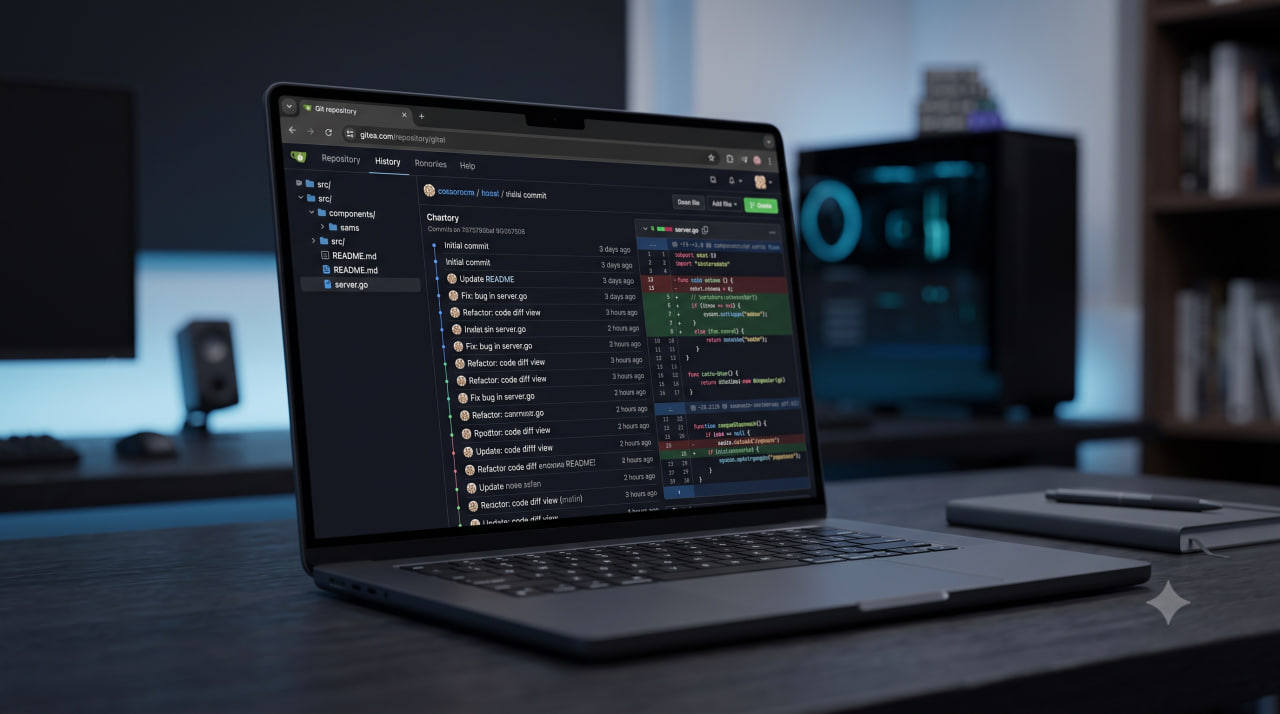
Gitea is a self-hosted Git service with a web interface similar to GitHub’s. It runs on 150-200 MB of RAM, starts in Docker within minutes and gives you full control over your code: private repositories, pull requests, issues and CI/CD through Gitea Actions. The data stays on your server, not with a third-party provider.
Gitea vs GitHub vs GitLab
| Gitea | GitHub | GitLab (self-hosted) | |
|---|---|---|---|
| Hosting | Your server | Cloud | Your server |
| RAM | ~150 MB | — | 2+ GB |
| Private repositories | Unlimited | Unlimited | Unlimited |
| CI/CD | Gitea Actions | GitHub Actions | GitLab CI |
| Cost | Free | Free / paid | Free / paid |
| Data control | Full | None | Full |
Gitea’s main advantage over GitLab is resource use. GitLab needs at least 2 GB of RAM and 4 CPU cores to run well, while Gitea starts on a VPS with 1 GB of RAM. If you want a GitHub-like experience on your own server without heavy infrastructure, choose Gitea.
Requirements for installing Gitea
- A VPS with Ubuntu 20.04 / 22.04 / 24.04
- Docker and Docker Compose
- 512 MB of RAM minimum (1 GB recommended)
- A domain (optional, but you need one for SSL)
Installing Docker
If Docker is not installed yet, install it together with the Compose plugin as described in our Docker installation guide. After that the docker compose command used below is available.
Installing Gitea with Docker Compose
Create a directory and a configuration file:
mkdir ~/gitea && cd ~/gitea
nano docker-compose.yml
Paste in the contents:
services:
  gitea:
    image: gitea/gitea:latest
    container_name: gitea
    environment:
      - USER_UID=1000
      - USER_GID=1000
      - GITEA__database__DB_TYPE=sqlite3
    restart: always
    volumes:
      - ./gitea-data:/data
      - /etc/timezone:/etc/timezone:ro
      - /etc/localtime:/etc/localtime:ro
    ports:
      - "127.0.0.1:3000:3000"
      - "2222:22"
Start it:
docker compose up -d
Check that the container is up:
docker ps
A critical detail: the SSH port
Note the "2222:22" line in the configuration. It is deliberate.
If you write "22:22", Docker tries to take port 22 on the host, but the server’s own SSH daemon already runs there. One of them will not start. Port 2222 is the standard solution: Gitea listens for SSH on port 2222 from outside, while inside the container it is still port 22. If you use a firewall, open port 2222 in it, for example with sudo ufw allow 2222/tcp.
When you clone a repository over SSH, you have to give the port explicitly:
git clone ssh://git@gitea.example.com:2222/username/repo.git
To avoid typing the port every time, add this to ~/.ssh/config on the client machine:
Host gitea.example.com
    Port 2222
    User git
After that cloning works in the usual form:
git clone git@gitea.example.com:username/repo.git
Setting up Nginx
Gitea listens on port 3000 only on 127.0.0.1 (we set that in the compose file). To reach it through a domain, set up Nginx:
sudo nano /etc/nginx/sites-available/gitea
server {
    listen 80;
    server_name gitea.example.com;

    client_max_body_size 50m;

    location / {
        proxy_pass http://127.0.0.1:3000;
        proxy_set_header Host $host;
        proxy_set_header X-Real-IP $remote_addr;
        proxy_set_header X-Forwarded-For $proxy_add_x_forwarded_for;
        proxy_set_header X-Forwarded-Proto $scheme;
        proxy_read_timeout 300s;
    }
}
sudo ln -s /etc/nginx/sites-available/gitea /etc/nginx/sites-enabled/
sudo nginx -t && sudo systemctl reload nginx
Add SSL with Certbot:
sudo certbot --nginx -d gitea.example.com
The client_max_body_size 50m directive matters for large repositories and Git LFS files. Without it Nginx rejects big push operations with a 413 error. proxy_read_timeout 300s is there so Nginx does not cut off long git push operations.
Initial Gitea setup
Open the browser: https://gitea.example.com
You will see the initial setup wizard. The main parameters:
- Database type: SQLite3 is enough for small teams (up to 100 users) and needs no separate service. MySQL or PostgreSQL are for larger organizations.
- Server URL: enter your domain,
https://gitea.example.com - SSH domain:
gitea.example.com - SSH port:
2222
Important: the first registered user automatically becomes the administrator. Register right after the installation finishes, before anyone else does.
If you want to create the administrator from the command line, bypassing web registration:
docker exec -u git -it gitea gitea admin user create \
  --username admin \
  --password a-strong-password \
  --email admin@example.com \
  --admin
Gitea Actions: built-in CI/CD
Since version 1.19 Gitea includes built-in CI/CD, Gitea Actions. The workflow syntax is largely compatible with GitHub Actions, so existing workflows can often be moved over unchanged.
Actions need a runner, a separate process that executes the jobs. First get a registration token in the Gitea web interface (Site Administration → Actions → Runners → Create new runner). Then start the runner next to Gitea:
docker run -d \
  --name gitea-runner \
  -e GITEA_INSTANCE_URL=https://gitea.example.com \
  -e GITEA_RUNNER_REGISTRATION_TOKEN=your_token \
  -v /var/run/docker.sock:/var/run/docker.sock \
  -v $(pwd)/runner-data:/data \
  --restart always \
  gitea/act_runner:latest
Once the runner shows up as online in the Gitea interface, CI/CD is available for your repositories. Keep in mind that mounting the Docker socket gives the runner’s jobs control over Docker on the host, so use such a runner only for repositories you trust.
Backup
Gitea keeps all of its data in the gitea-data folder created during installation. The simplest backup:
tar -czf gitea-backup-$(date +%F).tar.gz ~/gitea/gitea-data/
For a full dump including the database, use the built-in command:
docker exec -u git -w /data -it gitea gitea dump -c /data/gitea/conf/app.ini
It creates a ZIP archive with the repositories, the database and the config. The archive appears in the container’s /data/, which is ~/gitea/gitea-data/ on the host.
Updating
cd ~/gitea
docker compose pull
docker compose up -d
Docker downloads the new image and restarts the container, keeping all the data in the volume.
Frequently asked questions
What is Gitea’s advantage over GitHub for personal projects?
Full control over your data: the code lives on your server, not with a third-party provider. Unlimited private repositories with no subscription. The ability to work in an internal network with no internet access. The web interface and features are still comparable to GitHub’s.
Why can’t I use port 22 for Gitea SSH on a VPS?
Port 22 on the host is already taken by the server’s SSH daemon. If you forward the same port into the Gitea Docker container, there is a conflict. The standard solution is to use port 2222 for Gitea SSH, with the "2222:22" mapping in docker-compose.yml.
Which database should I choose for Gitea?
SQLite3 is built into Gitea and needs no separate service. It suits teams of up to 100 people and light loads. MySQL or PostgreSQL are recommended for organizations with many users, heavy loads, or when you need more advanced database backup options.
Is Gitea Actions compatible with GitHub Actions?
Largely yes: the workflow file syntax is the same, and most GitHub Actions can run in Gitea unchanged. The exception is actions that depend on GitHub-specific infrastructure (for example hosted runners with particular operating systems).
How do I move repositories from GitHub to Gitea?
In the Gitea interface: “New” → “New Migration” → “GitHub”. Enter a GitHub API token and choose the repositories to move. Gitea copies the code, issues, pull requests, wiki and releases. For large repositories the process takes a few minutes.
Gitea runs comfortably even on a minimal VPS. At UFO.Hosting a small plan on NVMe storage is enough for a small team of developers: Gitea with a few dozen repositories uses less than half of its resources.
Official documentation: docs.gitea.com
Related
All articles
Nextcloud on a VPS: your own cloud with Docker Compose
Nextcloud is a cloud you own: files synced to your phone and computer, a calendar, contacts, and share-by-link. On a VPS you run it with Docker Compose as five containers: Nextcloud itself, a PostgreSQL database, a Redis cache, a container…

RDP for two users on Windows Server 2016-2025: setup guide
By default, Windows Server 2016, 2019, 2022 and 2025 let two administrators connect over RDP at the same time, and you don’t need to buy Remote Desktop licenses for it. Below: how this works, how resources are shared, and a…