

mtr on macOS: How to Install and Run Network Diagnostics

mtr (My Traceroute) is a handy utility that combines the functions of ping and traceroute. It allows you to quickly visualize the route packets take to a server, measure latency at each hop, and detect packet loss that causes connection instability.
What mtr Does
mtr sequentially probes all nodes along the route to a destination and displays — in real time — where delays or packet losses occur. This helps you quickly distinguish a local issue from problems with your ISP or a backbone network.
Installing mtr on macOS
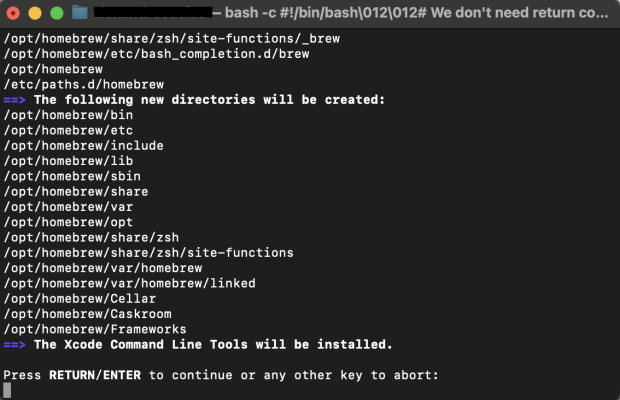
1) Install Homebrew
The Homebrew package manager makes installing mtr simple:
/bin/bash -c "$(curl -fsSL https://raw.githubusercontent.com/Homebrew/install/HEAD/install.sh)"
brew -v
If prompted, enter your administrator password and confirm the installation.
2) Install mtr
Once Homebrew is installed, run:
brew install mtr
Then move the binary files into your system path (administrator rights are required):
sudo cp "$(brew --prefix mtr)/sbin/mtr" /usr/local/bin
sudo cp "$(brew --prefix mtr)/sbin/mtr-packet" /usr/local/bin
After this, mtr will be available from any terminal. Restart the terminal if needed.
Quick Start: Testing the Connection
On macOS, mtr typically requires superuser privileges to run:
sudo mtr <IP_or_domain>
After a few seconds, you’ll see a table displaying all hops and their metrics.
To take a static snapshot instead of live updating results, use report mode:
sudo mtr -r -c 10 example.com
The flag -c 10 tells mtr to send 10 probes to each node and generate a summary report — perfect for attaching to a support ticket.
How to Read the Results
Each row in the table represents a hop (node) along the route, with its statistics:
- Host — hostname or IP address of the node.
- Loss % — percentage of packets lost.
- Snt/Recv — number of packets sent and received.
- Last / Avg / Best / Wrst — last, average, minimum, and maximum latency (in ms).
- StDev — latency variation, showing the connection’s stability.
Consistent packet loss on a specific node or a noticeable increase in Avg or Wrst values compared to nearby hops is a red flag — these are often the network’s weak spots.
Useful Parameters
- -r — report mode (non-interactive).
- -c N — number of packets to send (e.g., -c 10).
- -i X — interval between requests (default: 1 second).
- -4 or -6 — force IPv4 or IPv6 mode.
- -T — send TCP packets (useful for testing services).
-u — send UDP packets (helpful when ICMP is blocked).
Related
All articles
How to Extract Files on Computers and Mobile Devices
Working with archive files is a fairly standard task for any computer user. Apple computers, Windows PCs, iPhones, and Android devices all handle file extraction in a broadly similar way. Still, there are a few differences that can make the…

What HTTPS Is and Why It Matters
HTTPS is the secure version of the HTTP protocol used to transfer data between a browser and a website. Put simply, HTTP handles the exchange of information itself, while HTTPS makes that exchange secure. That is why a padlock icon…