

How to Generate an SSH Key for Server Access

Working with remote servers requires a stable internet connection and a high level of security. Traditional passwords are gradually giving way to a more reliable authentication method: SSH keys.
In this article, we’ll take a detailed look at how to create an encrypted key pair for system access and why this approach is considered the gold standard in server administration.
Why SSH Keys Are More Reliable Than a Regular Password
The main weakness of any password is that it can be intercepted or cracked via brute force. SSH keys work differently: they consist of a pair of long character sequences. The public key is stored on the server, while the private key stays locally on your machine.
Breaking this pair is practically impossible because it relies on complex mathematical algorithms. In addition, using keys eliminates the need to manually enter complex passwords every time, which significantly speeds up your workflow.
SSH keygen on Linux and macOS
On Unix-based systems, the key generation process is as simple as it gets, because all the necessary tools are already built in. You won’t need to install any additional software.
First, open a terminal and run:
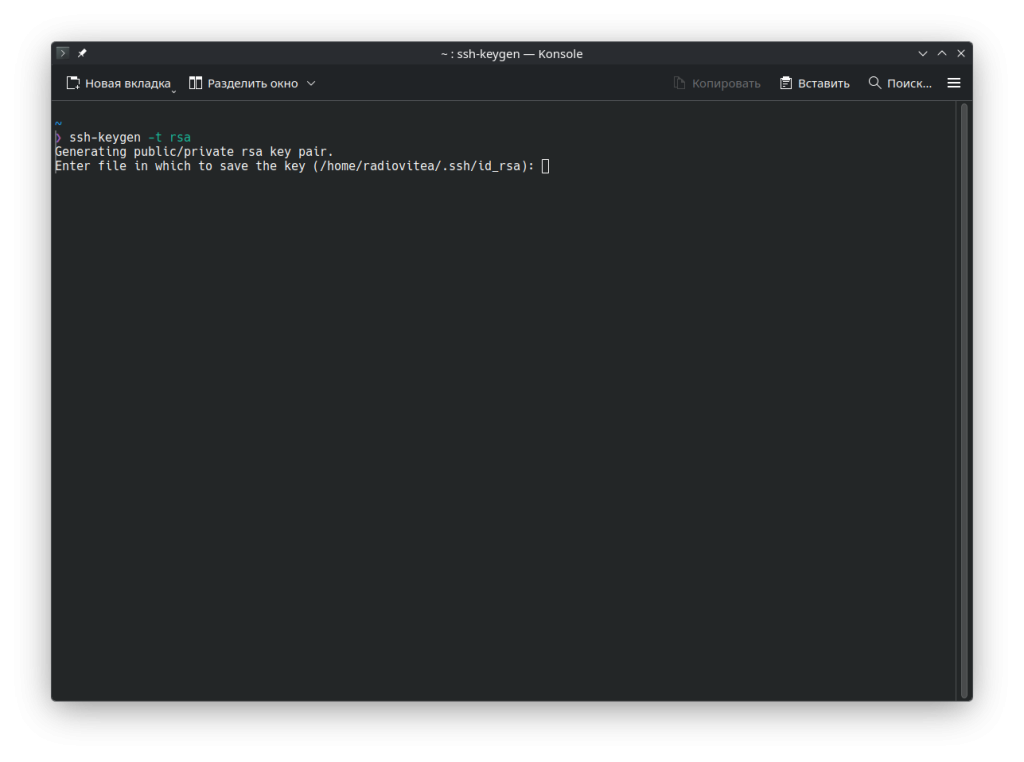
ssh-keygen -t rsa
After you press Enter, the system will ask where to save the file. If you don’t have any specific requirements, it’s best to keep the default (usually ~/.ssh/id_rsa) by pressing Enter again.
Снимок экрана 20260115 172242
Next, the program will prompt you to set a passphrase — essentially a “password for the key.” If you want maximum protection, enter a passphrase. If you prefer automatic login without extra prompts, you can skip this step by pressing Enter twice.
When the process finishes, you’ll see a randomart image and information about where your keys were saved. Your public key is stored in the file with the .pub extension. To view and copy it, run:
cat ~/.ssh/id_rsa.pub
Copy the entire output string and paste it into your server’s control panel. Once the key is added to the settings, you’ll be able to connect with ssh root@[SERVER_IP_ADDRESS], and the system will recognize you automatically.
Instructions for Windows Users
On Windows, things work a bit differently. While modern versions of the OS already support OpenSSH in the console, many professionals still prefer the time-tested PuTTY suite. To generate keys, you’ll need a helper utility from that package called PuTTYgen.
After launching the program, make sure RSA is selected as the key type at the bottom of the window and the key length is set to 2048 bits. Click Generate.
Now comes the interesting part: to create a truly random and unique key, the program will ask you to move your mouse cursor randomly around the blank area of the window. These movements serve as a source of random data for the encryption algorithm.
After generation is complete, be sure to do the following:
- Click Save public key and save the public key.
- Click Save private key to save the private key (a .ppk file). Keep it safe: if this file falls into the wrong hands, someone could gain access to your server.
- Copy the text from the top field in the PuTTYgen window — this is the code you need to add to your server settings.
In Summary
Setting up SSH key access is one of those cases where security goes hand in hand with convenience. By spending just a couple of minutes generating a key once, you protect your data from most automated attacks and избавите yourself of the routine of typing passwords.
No matter which operating system you use, the principle stays the same: your private key must remain secret, and your public key helps the server recognize an authorized user.
Related
All articles
What a 404 Error Means, Why It Happens, and How to Deal With It
A 404 error is one of the basic HTTP status codes. It is most often displayed as “404 Not Found” or “Page Not Found.” The wording makes it seem like something has broken. In practice, that is not necessarily the…

How to Install the Latest Versions of Docker and Docker Compose on Ubuntu and Debian
Docker is no longer just a tool for developers. It’s widely used for test environments, production services, and even small self-hosted projects at home. Docker Compose makes this setup even more convenient: instead of manually running multiple containers, you can…