
Installing Node.js with NVM and PM2 on Ubuntu
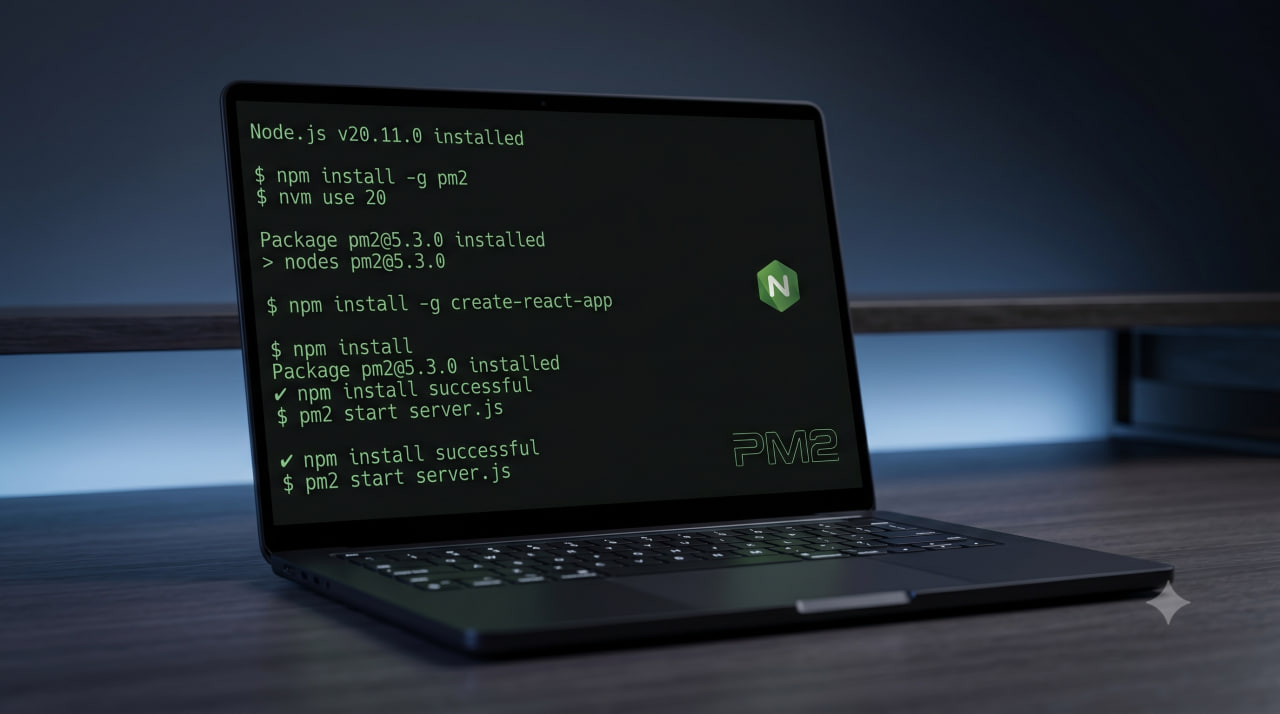
NVM (Node Version Manager) lets you install multiple Node.js versions on a single server and switch between them without reinstalling anything. PM2 is a process manager that keeps Node.js applications running in the background, restarts them on crash, and handles startup on server reboot. Together they cover most production Node.js requirements on a VPS.
Why NVM Instead of apt install nodejs
The Node.js package in Ubuntu’s default repositories is typically several major versions behind. Ubuntu 22.04 ships with Node.js 12.x, while current LTS versions are 20 and 22. Installing through apt also gives you only one version system-wide.
NVM solves both problems: you choose the version, install as many as you need, and switch between them with nvm use. This matters especially when multiple projects on the same server have different version requirements.
Installing NVM
Make sure curl is available:
sudo apt update && sudo apt install curl -y
Install NVM using the script from the official repository. Before running, check the latest release at github.com/nvm-sh/nvm/releases and replace v0.40.1 with the current version:
curl -o- https://raw.githubusercontent.com/nvm-sh/nvm/v0.40.1/install.sh | bash
The script automatically adds the necessary lines to ~/.bashrc. To activate NVM in the current session without opening a new terminal:
source ~/.bashrc
Verify the installation:
nvm --version
A version number means NVM is working correctly.
Installing Node.js
List all available LTS versions:
nvm ls-remote --lts
Install the latest LTS release:
nvm install --lts
Install a specific version (Node.js 20):
nvm install 20
NVM downloads pre-compiled binaries — nothing needs to be compiled. Confirm Node.js is working:
node --version
npm --version
Managing Multiple Versions
List installed versions:
nvm ls
Switch to a different version in the current session:
nvm use 20
Set the default version for all new sessions:
nvm alias default 20
Without this, the last installed version activates on each new SSH connection. Set the default explicitly to avoid confusion.
.nvmrc — Per-Project Node.js Version
If different projects require different Node.js versions, store the required version in a .nvmrc file in the project root:
echo "20" > .nvmrc
Inside the project directory, switching to the right version is then a single command:
nvm use
NVM reads the version from .nvmrc and switches to it automatically. Note: the file should contain only the version number (20), without the v prefix.
Installing PM2
Install PM2 globally via npm:
npm install -g pm2
Verify:
pm2 --version
Starting an Application with PM2
The simplest start:
pm2 start app.js --name myapp
The --name flag assigns a name to the process — you’ll use it for all subsequent management commands. Without a name, PM2 uses the filename.
Check running processes:
pm2 list
The table shows each process’s name, status (online/stopped/errored), PID, CPU and memory usage, and restart count.
Core Management Commands
| Command | What it does |
|---|---|
pm2 start app.js --name myapp |
Start the application |
pm2 list |
List all processes |
pm2 restart myapp |
Restart (brief downtime) |
pm2 reload myapp |
Restart with zero downtime (cluster only) |
pm2 stop myapp |
Stop the process |
pm2 delete myapp |
Remove from PM2 |
pm2 monit |
Interactive monitoring dashboard |
pm2 logs myapp |
View application logs |
pm2 logs --lines 100 |
Last 100 lines from all logs |
The difference between restart and reload matters in production: restart stops the application and starts it again — the app is unavailable for a few seconds. reload performs a graceful reload where new workers start before old ones stop, resulting in zero downtime. reload only works when the app runs with more than one instance in cluster mode.
ecosystem.config.js — Production Configuration
Running pm2 start app.js works fine for quick tests. For production, a configuration file is the right approach — settings become reproducible and can be version-controlled alongside the code.
Create the file in the project root:
nano ecosystem.config.js
A typical production configuration:
module.exports = {
  apps: [{
    name: 'myapp',
    script: './app.js',
    instances: 'max',           // one worker per CPU core
    exec_mode: 'cluster',       // enables load balancing
    env: {
      NODE_ENV: 'production',
      PORT: 3000
    },
    error_file: './logs/err.log',
    out_file: './logs/out.log',
    log_date_format: 'YYYY-MM-DD HH:mm:ss',
    max_memory_restart: '500M'  // restart if memory exceeds 500 MB
  }]
}
Start from the config file:
pm2 start ecosystem.config.js
instances: 'max' spawns one process per CPU core. Node.js is single-threaded, so this is the only way to utilize all cores on a multi-core server.
Startup on Server Reboot
By default, PM2 doesn’t survive a server restart. Two steps to fix this.
Step 1. Generate the startup script:
pm2 startup
PM2 prints a command to copy and run. It looks something like this:
sudo env PATH=$PATH:/home/user/.nvm/versions/node/v20.11.0/bin \
  /home/user/.nvm/versions/node/v20.11.0/lib/node_modules/pm2/bin/pm2 \
  startup systemd -u user --hp /home/user
Copy the command that PM2 outputs on your server — the paths will be specific to your installation. Run it.
Step 2. Save the current process list:
pm2 save
After a server reboot, all processes from the saved list will start automatically.
The Hidden Problem: NVM in Cron and Shell Scripts
NVM only works in interactive shells where ~/.bashrc gets loaded. In cron jobs, non-interactive scripts, and systemd services, ~/.bashrc is never read — so node and npm commands simply aren’t found.
This cron entry will silently fail:
# THIS WON'T WORK
0 3 * * * node /home/user/scripts/backup.js
The fix is to use the full path to the Node.js binary:
0 3 * * * /home/user/.nvm/versions/node/v20.11.0/bin/node /home/user/scripts/backup.js
Find the full path on your system:
which node
Alternatively, set PATH at the top of the crontab:
PATH=/home/user/.nvm/versions/node/v20.11.0/bin:/usr/local/bin:/usr/bin:/bin

0 3 * * * node /home/user/scripts/backup.js
For PM2-managed applications this isn’t an issue: the pm2 startup command embeds the full Node.js path directly into the generated systemd unit.
Viewing and Rotating Logs
Stream logs from all applications:
pm2 logs
View logs from a specific app with context:
pm2 logs myapp --lines 100
Clear all logs:
pm2 flush
By default, PM2 logs don’t rotate — they grow until they fill the disk. Install the log rotation plugin:
pm2 install pm2-logrotate
After installation, logs are automatically archived daily and kept for 30 days.
Frequently Asked Questions
Can I install multiple Node.js versions with NVM at the same time?
Yes — that’s the whole point. Install as many as you need: nvm install 18, nvm install 20, nvm install 22. Switch between them with nvm use 20. Each version is stored independently under ~/.nvm/versions/.
What do I do if the nvm command isn’t found after installation?
Run source ~/.bashrc or open a new terminal. If that doesn’t work, check whether the installer added NVM initialization to your profile: cat ~/.bashrc | grep nvm. If the lines are missing, add them manually: export NVM_DIR="$HOME/.nvm" followed by [ -s "$NVM_DIR/nvm.sh" ] && \. "$NVM_DIR/nvm.sh".
What’s the difference between pm2 restart and pm2 reload?
pm2 restart stops the process and starts it again — the app is briefly unavailable. pm2 reload performs a graceful restart where new workers come up before old ones are stopped, resulting in zero downtime. pm2 reload only works when the app runs in cluster mode (exec_mode: 'cluster').
How do I run multiple Node.js apps with PM2?
Start each one with a unique name: pm2 start api.js --name api, pm2 start frontend.js --name frontend. PM2 manages them independently. For complex setups, define all applications in a single ecosystem.config.js using the apps array.
Why does node fail to run in a cron job when NVM is installed?
NVM requires an interactive shell where ~/.bashrc is loaded. Cron doesn’t do this. Use the full path to the Node.js binary instead: /home/user/.nvm/versions/node/v20.11.0/bin/node. Find yours with which node.
Node.js with NVM and PM2 is the standard production stack for web applications on a VPS. Every server on UFO.Hosting runs Ubuntu 22.04 or 24.04 — NVM installs with a single command the moment you connect via SSH.
Official docs: github.com/nvm-sh/nvm · pm2.keymetrics.io/docs
Related
All articles
How to Extract Files on Computers and Mobile Devices
Working with archive files is a fairly standard task for any computer user. Apple computers, Windows PCs, iPhones, and Android devices all handle file extraction in a broadly similar way. Still, there are a few differences that can make the…

How to Work with .tar.gz Archives in Linux
As software evolves and data volumes grow, files become larger and heavier. To make them easier to store and transfer, they are often packaged into archives. In Linux, one of the most common formats is still .tar.gz. Despite its popularity,…